



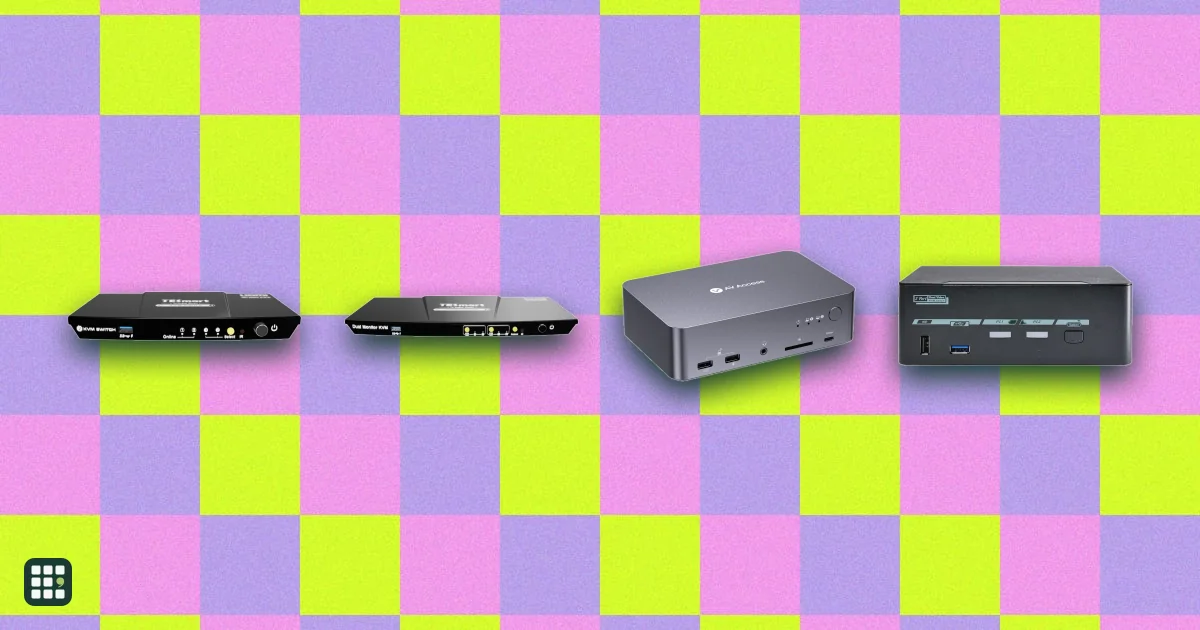
KVM switches
Compare desktop KVM switches for sharing one desk between two computers, such as a work laptop and a personal PC. The real choices are how many monitors you need, which video connections your computers have (HDMI, DisplayPort or USB-C), refresh rate, EDID emulation so windows stay put, USB speed, and whether the switch can charge a laptop.
Last updated
How to choose
1. Count computers and monitors
Most home offices need a 2-computer KVM. Then match the number of monitors you use: a dual-monitor desk needs a dual-monitor KVM, which costs noticeably more.
2. Match the video connections
Look at what each computer has. Desktops usually have DisplayPort and HDMI; many laptops only have USB-C. A KVM built for your connection works better than one that needs adapters, which can limit resolution and break EDID. For a work laptop, a USB-C KVM dock that carries video, data and charging over one cable keeps the desk tidy.
3. Check resolution and refresh rate
4K at 60 Hz is plenty for office work. If you game on a 4K 120-144 Hz monitor, you need a KVM rated for that refresh rate, usually DisplayPort 1.4 or HDMI 2.1.
4. Insist on EDID emulation for dual monitors
Without EDID emulation, computers think the monitors were unplugged each time you switch, so windows jump and resolutions reset. It matters most with two or more monitors.
5. Mac users: check extended displays
macOS does not support MST, so many dual-monitor USB-C KVMs can only mirror both monitors on a Mac. Look for a maker statement that Macs get two extended displays, or a model with separate video inputs per monitor.
6. USB, audio and network
Count your peripherals. USB 2.0 is fine for a keyboard and mouse; a webcam, drives or a dock want USB 3.0 (5Gbps) or faster. Shared audio and Ethernet ports are nice extras.
7. Switching and cables
A hotkey or a desk remote beats reaching for a button behind the monitor. Check whether the KVM cables are included; a set for two computers can add $20-60.
Pitfalls
- Some gaming keyboards and mice with their own software don't pass hotkeys or extra buttons through the KVM's emulated USB ports; most KVMs have a plain USB port for these.
- Laptop charging through a USB-C KVM is limited by its wattage; a big laptop may charge slowly.
- Corporate laptops sometimes block USB devices or docks; check with your IT team.
Answer
Browse the table. Filter to what matters.
Use the filters below, then sign in if you want to shortlist and decide with friends.
Sign in to vote, hide products and features, and reorder.
Verified: hover a cell and click its green dot for the source Estimate: no cited source Not stated: the maker doesn't publish it
| Feature | ⠿ | ⠿ | ⠿ | ⠿ | ⠿ | ⠿ | ⠿ | ⠿ | ⠿ | ⠿ | ⠿ | ⠿ | ⠿ |
|---|---|---|---|---|---|---|---|---|---|---|---|---|---|
|
⠿
Price
|
|||||||||||||
|
⠿
Computers
|
|||||||||||||
|
⠿
Monitors
|
1 monitors
|
||||||||||||
|
⠿
Computer video connection
|
DisplayPort
|
||||||||||||
|
⠿
Max resolution
|
|||||||||||||
|
⠿
Refresh rate at 4K
|
|||||||||||||
|
⠿
USB C laptop video
|
|
|
|
||||||||||
|
⠿
Laptop charging
|
Doesn't apply
|
Doesn't apply
|
Doesn't apply
|
Doesn't apply
|
Doesn't apply
|
Doesn't apply
|
Doesn't apply
|
Doesn't apply
|
Doesn't apply
|
||||
|
⠿
USB device ports
|
4 ports
|
4 ports
|
4 ports
|
5 ports
|
6 ports
|
6 ports
|
|||||||
|
⠿
USB speed
|
|||||||||||||
|
⠿
EDID emulation
|
|
|
|
||||||||||
|
⠿
Switching methods
|
Front button, hotkey
|
Front button, hotkey
|
|||||||||||
|
⠿
Hotkey switching
|
|
||||||||||||
|
⠿
Audio ports
|
|
||||||||||||
|
⠿
Ethernet sharing
|
|
|
|
|
|
|
|
|
|||||
|
⠿
Operating systems
|
Windows, macOS, Linux
|
OS independent
|
OS independent
|
Windows, macOS, Linux
|
|||||||||
|
⠿
Mac extended dual displays
|
Doesn't apply
|
Doesn't apply
|
|
|
|
|
Doesn't apply
|
Doesn't apply
|
|
Doesn't apply
|
Doesn't apply
|
||
|
⠿
Cables included
|
|||||||||||||
|
⠿
Warranty
|
1 years
|
2 years
|
2 years
|
||||||||||
|
⠿
HDR
|
|
|
|

Why these features matter
-
Price ($)
KVMs range from about $40 for a basic one-monitor HDMI switch to $500+ for dual-monitor DisplayPort or USB-C docking models. Pay for monitors, refresh rate, and laptop charging only if you need them.
-
Computers (computers)
Most home offices need two: a work laptop and a personal PC. Buy more ports only if you'll really connect more machines.
-
Monitors (monitors)
The KVM must match your desk: a dual-monitor setup needs a dual-monitor KVM, which costs more.
-
Computer video connection
Check your computers' outputs. Laptops often only have USB-C; desktops with graphics cards usually have DisplayPort and HDMI. Adapters can add problems with resolution and EDID.
-
Max resolution
Make sure it at least matches your monitor. Higher-end models carry 4K at 120-144Hz for gaming.
-
Refresh rate at 4K (Hz)
60 Hz is fine for office work. Gamers with 4K 120-144 Hz monitors need a KVM that passes that through, or they lose smooth motion.
-
USB C laptop video
One cable per laptop keeps a work-from-home desk tidy and works with laptops that have no HDMI or DisplayPort.
-
Laptop charging (W)
Charging over the same cable saves a power brick; 65 W covers most 13-14 inch laptops, 100 W bigger ones.
-
USB device ports (ports)
Count your keyboard, mouse, webcam, headset, and drives. Too few ports means adding a hub.
-
USB speed
USB 2.0 is fine for keyboards and mice. Webcams, external drives, and docks benefit from USB 3.0 or faster.
-
EDID emulation
Without EDID emulation, windows can jump to one screen and resolutions reset every time you switch. Important for dual-monitor setups.
-
Switching methods
A desk remote or hotkey is much handier than reaching for a button on a box behind the monitor.
-
Hotkey switching
Switching without taking your hands off the keyboard. Some gaming keyboards don't pass hotkeys through, so check compatibility.
-
Audio ports
Lets one set of speakers or one headset follow whichever computer you're using.
-
Ethernet sharing
Gives laptops a wired connection through the KVM, handy for video calls.
-
Operating systems
Most KVMs are driver-free, but check macOS and Linux support, especially for hotkeys and dual displays.
-
Mac extended dual displays
Many USB-C and MST-based KVMs can only mirror the two monitors on a Mac, because macOS lacks MST support.
-
Cables included
KVM cable sets for two computers can add $20-60 if they're not in the box.
-
Warranty (years)
A longer warranty helps with a device that sits in the middle of every work day.
-
HDR
Only matters if your monitor and content use HDR, mostly for media and gaming.
About the products
-
HKS201-EB23 · TESmart
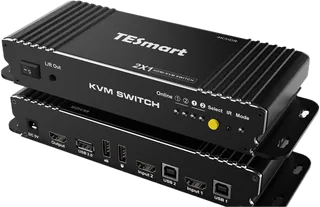
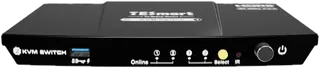
A low-cost 2-PC, 1-monitor HDMI KVM with 4K 60Hz, EDID emulation, hotkey/mouse/IR switching and cables in the box. USB 2.0 only. TESmart's US-plug version showed sold out; its store usually sells it well below the listed regular price.
-
HKS201-P23 · TESmart
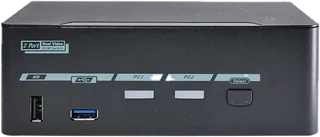
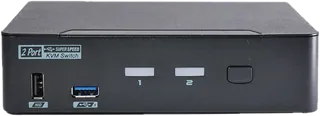
A 2-PC, 1-monitor HDMI KVM with a USB 3.0 hub, EDID emulation, HDR, an IR remote and a 5-year warranty with registration. A good fit for one 4K 60Hz monitor shared by a desktop and an HDMI laptop.
-
HKS202-P23 · TESmart
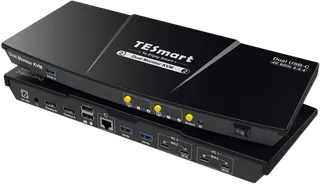
Dual-monitor HDMI KVM for 2 PCs, 4K 60Hz on each screen, USB 3.0, audio switching, IR remote and cables included. Each PC needs two HDMI outputs; EDID emulation applies in one of its display modes.
-
DKS202-MC24 · TESmart
High-end 2-PC, 2-monitor DisplayPort 1.4 KVM for gaming and creative work: 4K 144Hz or 8K 60Hz, HDR, EDID emulation, shared Gigabit Ethernet and a copy-paste feature between PCs. Listed as a pre-order when checked.
-
CKS202-P23 · TESmart
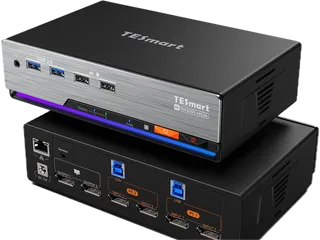
USB-C KVM dock for two laptops and two HDMI monitors: one cable per laptop for video, USB 3.0 and up to 60W charging, plus Ethernet and EDID emulation. On a Mac, dual-monitor output may be limited by macOS's lack of MST.
-
Level1Techs DP 1.4 KVM Dual Monitor 2 Computer · Level1Techs
An enthusiast favorite: two DisplayPort 1.4 monitors at up to 4K 120Hz shared by 2 computers, with USB 3 (5 or 10Gbps model) and audio. No EDID emulation, no cables in the box, and a high price.
-
Level1Techs DP 1.4 KVM Single Monitor 2 Computer · Level1Techs
Single-monitor version of Level1Techs' DisplayPort 1.4 KVM, 4K 120Hz, with USB 3 and audio. No EDID emulation or cables; the 5Gbps model showed sold out when checked.
-
ATEN CS1922 · ATEN
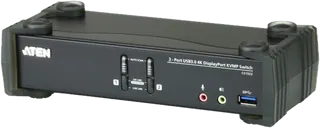
A business-grade 2-port DisplayPort KVM for one 4K 60Hz monitor (more via MST), with a USB 3.0 hub, audio, hotkey/button/mouse switching and cables included. ATEN sells through resellers and lists no US price.
-
ATEN CS1942DP · ATEN
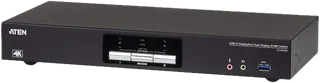
ATEN's dual-display DisplayPort KVM for 2 computers at 4K 60Hz, with USB 3.0 hub, audio, RS-232 control and cables included. Sold through resellers; no US price listed by ATEN.
-
SV231DPU34K · StarTech.com
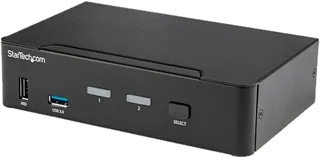
A TAA-compliant 2-port DisplayPort 1.2 KVM for one 4K 60Hz monitor with a USB 3.0 hub, 4 keyboard/mouse ports, audio, hotkeys and a 2-year warranty. Cables are not included, and it's pricey for its specs.
-
Cable Matters 14-in-1 USB-C KVM Switch Dock · Cable Matters
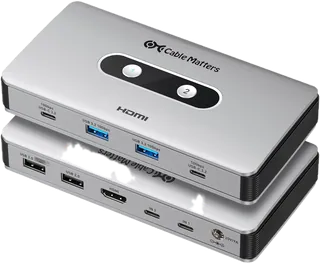
A USB-C KVM dock for two laptops with dual 4K 60Hz monitors, 10Gbps USB, SD card readers and up to 100W charging, switched by an RF remote. Not for desktop PCs, no EDID emulation, and Macs get only one extended display. Showed out of stock when checked.
-
Cable Matters USB-C KVM Switch for 2 Laptops · Cable Matters
A single-monitor USB-C KVM for two laptops: 4K 60Hz HDMI, 10Gbps USB ports, up to 100W charging, RF remote and hotkeys, cables included. Both laptops need USB-C with DisplayPort Alt Mode.
-
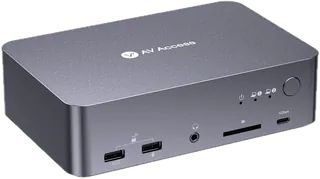
iDock C20 · AV Access
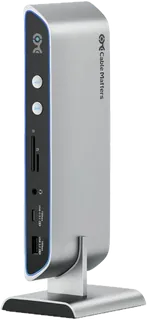
A USB-C KVM docking station for two laptops with dual 4K 60Hz HDMI, 60W charging per laptop, Ethernet and EDID emulation. No hotkeys (front button or optional wired remote), and Macs mirror the second monitor.
Suggest a change
Related comparisons
-
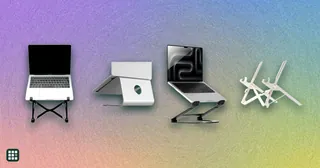 Laptop stands
Compare fixed, adjustable, and folding laptop stands by how high they lift the screen, how they adjust, what they weigh and fold down to, what size laptop they hold, and the warranty. The trade-off is between solid desk stands that stay put and light folding stands you can carry, and between a fixed height and one you can tune.
-
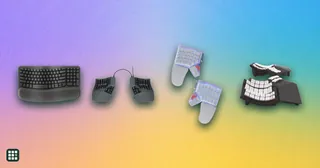 Ergonomic keyboards
 change the angle of your hands and wrists to reduce strain from long typing sessions. They range from gently curved one-piece boards that feel familiar on day one to fully split, tented, programmable keyboards that take weeks to learn. This grid compares layout, split and tenting adjustment, key switches, compatibility, and the learning curve, so you can match the amount of change to your needs and budget.
-
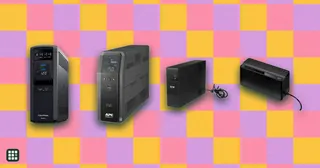 Uninterruptible power supplies
Compare desktop and tower uninterruptible power supplies (UPS) from CyberPower, APC and Eaton for a home office, home network or small business. A UPS keeps your computer, monitor, router and modem running through short outages and gives you time to save work and shut down. The real trade-offs are output power, pure sine wave versus simulated output, runtime at your actual load, and how easily you can replace the battery when it wears out.
-
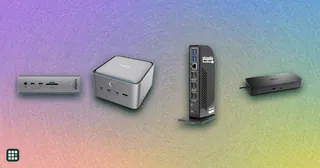 USB-C docking stations
A USB-C dock turns one cable into monitors, charging, and the ports a laptop left off. The split that matters is Thunderbolt versus plain USB-C: Thunderbolt drives more screens and faster drives, and plain USB-C is cheaper when you only need one or two displays.
-
 Office headsets
 are built for clear calls: a microphone that picks up your voice and not the room, controls for muting, and comfort for hours of meetings. They range from $30 wired USB models to wireless headsets with noise cancellation, busy lights and long-range DECT bases. This grid compares mic design and noise reduction, connection, battery, mute controls, certifications and comfort.
-
 Desk lamps
A good desk lamp puts enough light on your work without glare in your eyes or on your screen. Options range from classic spring-balanced arm lamps to LED lamps with adjustable color temperature and automatic brightness, and monitor light bars that take no desk space. This grid compares brightness, color temperature, glare control, adjustability, mounting and price.