



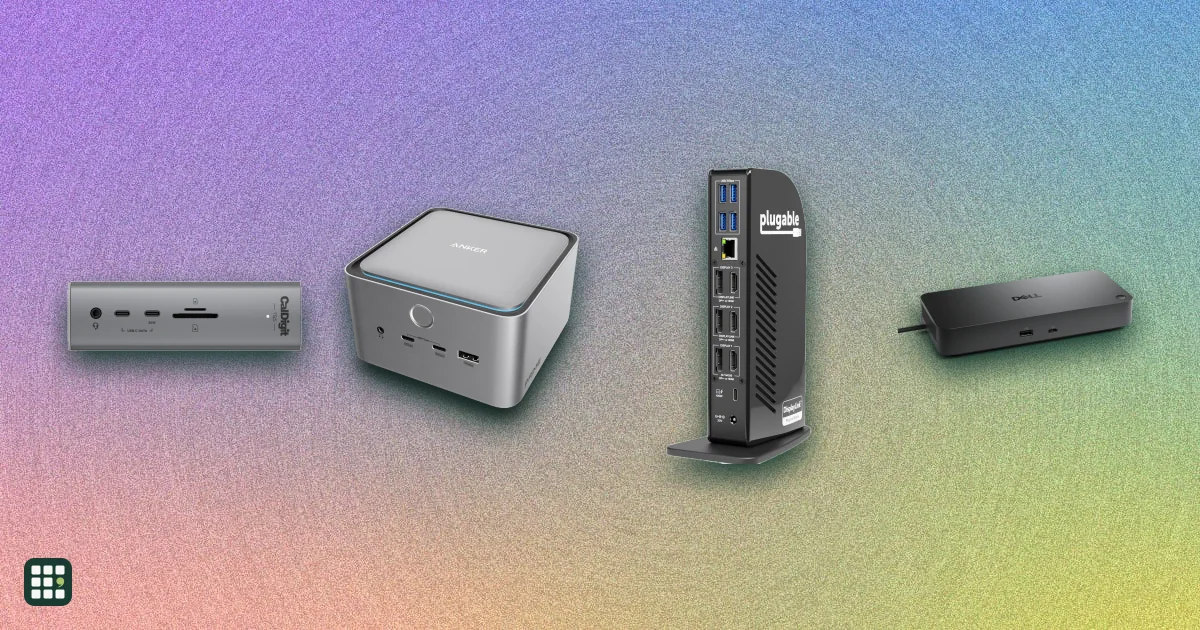
USB-C docking stations
A USB-C dock turns one cable into monitors, charging, and the ports a laptop left off. The split that matters is Thunderbolt versus plain USB-C: Thunderbolt drives more screens and faster drives, and plain USB-C is cheaper when you only need one or two displays.
Last updated
How to choose
Start with the laptop port, not the dock. A Thunderbolt or USB4 port can run a Thunderbolt dock. A plain USB-C port cannot use a Thunderbolt-only dock at full spec, and some docks refuse it entirely.
Screens
Count the monitors and note whether they are HDMI or DisplayPort. A dock with only Thunderbolt display outputs needs an adapter for HDMI. On a Mac, the chip also caps how many screens one port can drive. Base M1, M2, and M3 Macs often stop at one external display even when the dock claims more.
Charging
Match the dock's laptop charging watts to the charger that came with the laptop. A 16-inch MacBook Pro wants about 140W. A thinner laptop is fine at 60W to 100W. Check that the dock keeps that wattage when other devices are plugged in.
Ports you will actually use
Ethernet speed, an SD card reader, and a headphone jack are the extras that save a second dongle. DisplayLink docks add screens through software. They can work around a Mac's display limit, and they also add a driver.
Business docks
Dell and HP docks add IT features such as remote firmware updates, MAC address pass-through and longer warranties. They often charge their own brand of laptop faster than others: a Dell dock rated 130W gives other laptops, including Macs, 96W. Their four-monitor claims usually rely on DisplayPort daisy-chaining, which Macs do not support.
Answer
Browse the table. Filter to what matters.
Use the filters below, then sign in if you want to shortlist and decide with friends.
Sign in to vote, hide products and features, and reorder.
Verified: hover a cell and click its green dot for the source Estimate: no cited source Not stated: the maker doesn't publish it
| Feature | ⠿ | ⠿ | ⠿ | ⠿ | ⠿ | ⠿ | ⠿ | ⠿ | ⠿ | ⠿ | ⠿ | ⠿ | ⠿ | ⠿ | ⠿ | ⠿ | ⠿ |
|---|---|---|---|---|---|---|---|---|---|---|---|---|---|---|---|---|---|
|
⠿
Price
|
|||||||||||||||||
|
⠿
Laptop charging
|
|||||||||||||||||
|
⠿
Host connection
|
USB-C
|
||||||||||||||||
|
⠿
Ethernet
|
|||||||||||||||||
|
⠿
HDMI ports
|
0
|
0
|
|||||||||||||||
|
⠿
DisplayPort ports
|
0
|
0
|
1
|
||||||||||||||
|
⠿
Downstream Thunderbolt ports
|
0
|
0
|
1
|
||||||||||||||
|
⠿
SD card reader
|
|
|
|
|
|||||||||||||
|
⠿
Max external displays
|
|||||||||||||||||
|
⠿
Mac display support
|
|||||||||||||||||
|
⠿
DisplayLink
|
|
|
|
|
|
|
|
|
|
|
|
||||||
|
⠿
Max display resolution
|
8K 60Hz (multi-tile)
|
||||||||||||||||
|
⠿
Downstream USB C ports
|
2
|
||||||||||||||||
|
⠿
USB A ports
|
3
|
2
|
4
|
||||||||||||||
|
⠿
Fastest USB data
|
10 Gbps
|
||||||||||||||||
|
⠿
Audio jack
|
|
|
|
||||||||||||||
|
⠿
Power supply
|
Doesn't apply
|
Doesn't apply
|
|||||||||||||||
|
⠿
Warranty
|
|||||||||||||||||
|
⠿
Lock slot
|
|
|
|
|
|
|
|
|
|

Why these features matter
-
Price ($)
Thunderbolt 5 docks cost more than a USB-C dock. The price only helps if the laptop can use the extra screens and speed.
-
Laptop charging (W)
A dock that cannot match the laptop's own charger will run the battery down during heavy work.
-
Host connection
The dock cannot be faster than the laptop port. A Thunderbolt 5 dock on a Thunderbolt 4 laptop falls back to Thunderbolt 4 speeds.
-
Ethernet
A wired port is steadier than Wi-Fi for calls and large uploads. 2.5 GbE and 10 GbE only help if the router or switch is that fast.
-
HDMI ports
Most office monitors are HDMI. A dock with only DisplayPort or Thunderbolt means buying an adapter for each screen.
-
DisplayPort ports
DisplayPort is the direct output on many docks. A second DisplayPort monitor may still need a cable rather than HDMI.
-
Downstream Thunderbolt ports
These ports take fast drives and extra monitors. They are also how a dock with no HDMI still runs a screen.
-
SD card reader
A built-in reader is what camera and drone cards plug into. Without it you add another dongle.
-
Max external displays
Sets how many screens you can run from one cable. The real number on your laptop may be lower, especially on base Apple chips.
-
Mac display support
Base M-series MacBooks support fewer monitors than Windows PCs, and some docks work around that only with DisplayLink software.
-
DisplayLink
DisplayLink adds monitors beyond a Mac's native limit, but needs an app, can block protected video, and uses some CPU.
-
Max display resolution
Matters for 5K/6K monitors and high refresh rates; most 4K office monitors need only 4K 60Hz.
-
Downstream USB C ports
More USB-C ports means fewer adapters for newer drives, phones and accessories.
-
USB A ports
Most keyboards, mice, webcams and flash drives still use USB-A.
-
Fastest USB data (Gbps)
Fast external SSDs need 10 Gbps or more; 5 Gbps is fine for keyboards and webcams.
-
Audio jack
Handy for wired headsets and desk speakers without using the laptop's own jack.
-
Power supply (W)
A bigger power brick leaves headroom to charge the laptop and power bus-powered drives at the same time.
-
Warranty (years)
Docks run hot and stay on all day; a longer warranty covers failures that show up after the first year.
-
Lock slot
Offices and shared desks often need to lock docks down.
About the products
-
CalDigit TS5 Plus · CalDigit
Thunderbolt 5 dock with 140W laptop charging that stays at 140W when other devices are attached, a DisplayPort 2.1 port, 10 Gigabit Ethernet, and front SD and microSD readers. HDMI needs an adapter. It is not for plain 5Gb/s or 10Gb/s USB-C hosts.
-
CalDigit TS5 · CalDigit
Thunderbolt 5 dock with 140W charging, three downstream Thunderbolt 5 ports and 2.5 Gigabit Ethernet. It has no built-in DisplayPort or HDMI, so monitors go on the Thunderbolt ports or through adapters.
-
CalDigit TS4 · CalDigit
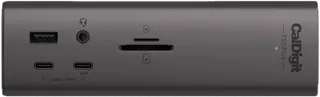
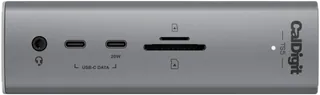
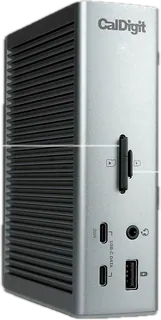
Thunderbolt 4 dock with 98W charging, one DisplayPort, 2.5 Gigabit Ethernet, and SD plus microSD. One of its three Thunderbolt ports is the host cable, leaving two downstream. HDMI needs an adapter.
-
Plugable TBT-UDH2 · Plugable
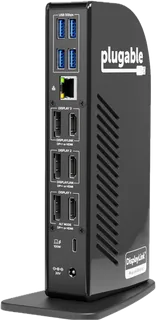
Thunderbolt 5 dock with two native HDMI 2.1 ports, 140W laptop charging, and 2.5 Gigabit Ethernet. Plugable lists it at $349.95 and includes a 2-year warranty.
-
CalDigit SOHO Dock · CalDigit · Discontinued
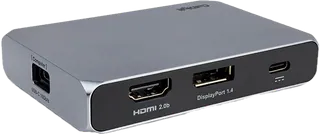
Bus-powered USB-C travel-size dock with HDMI and DisplayPort and up to 90W laptop charging pass-through. CalDigit now lists it as discontinued. On a Mac the second screen is mirrored, not extended. Bus-powered; no charger is included.
-
Anker Prime TB5 Docking Station (14-in-1) · Anker
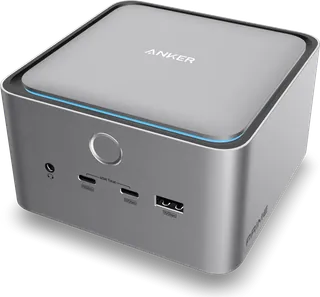
Thunderbolt 5 dock with 140W charging, two downstream Thunderbolt 5 ports, and one video port that works as either HDMI 2.1 or DisplayPort 2.1 (not both at once). 2.5 Gigabit Ethernet and SD/microSD readers. Power supply is built in (AC cord, no external adapter).
-
Anker 563 USB-C Docking Station (10-in-1) · Anker
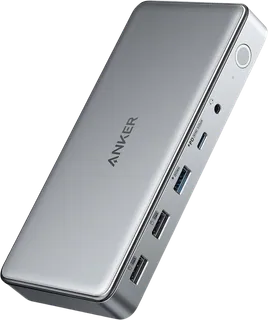
USB-C dock that uses DisplayLink to run up to three monitors, including on base M1 Macs. Only one screen reaches 4K, and only at 30Hz; the others are 2K. 100W laptop charging; Anker's US store showed it sold out in October 2026.
-
Satechi Thunderbolt 5 CubeDock · Satechi
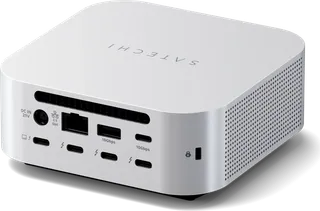
Compact Thunderbolt 5 dock with a built-in NVMe SSD enclosure, three downstream Thunderbolt 5 ports, 140W charging and 2.5 Gigabit Ethernet. No HDMI or DisplayPort, so monitors connect over Thunderbolt or adapters.
-
Dell Pro Thunderbolt 4 Smart Dock (SD25TB4) · Dell
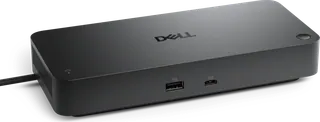
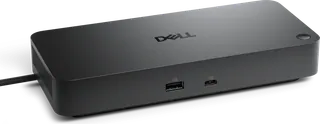
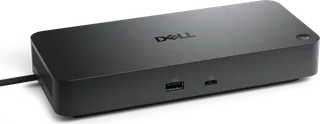
Business Thunderbolt 4 dock with two DisplayPort and one HDMI port, 2.5 Gigabit Ethernet, and cloud-based firmware management for IT teams. Charges Dell laptops at up to 130W but other laptops, including Macs, at 96W. No SD reader or audio jack.
-
Dell Pro Dock (WD25) · Dell
Business USB-C dock with two DisplayPort and one HDMI port and 2.5 Gigabit Ethernet. Charges Dell laptops at up to 100W, other laptops at 96W. Its four-monitor support relies on DisplayPort daisy-chain features that Macs do not support.
-
Dell Pro Thunderbolt 5 Dock (WD25TB5) · Dell
Business Thunderbolt 5 dock with two DisplayPort 2.1, one HDMI 2.1 and two downstream Thunderbolt 5 ports, plus up to 240W charging for non-Dell laptops (300W for Dell). The priciest dock here. No SD reader or audio jack.
-
Plugable UD-ULTC4K · Plugable
USB-C dock that uses DisplayLink to run three 4K 60Hz monitors, even on base M-series Macs that support only one screen natively. Needs the DisplayLink app, and protected video may not play on DisplayLink screens. 100W laptop charging and Gigabit Ethernet.
-
Revodok Max 213 · UGREEN
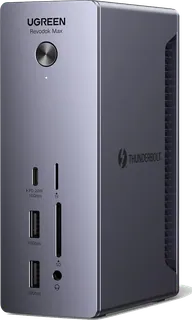
Thunderbolt 4 dock with one DisplayPort, 2.5 Gigabit Ethernet, SD/microSD and 90W charging. Cheaper than most Thunderbolt 4 docks, but 90W is short of what a 16-inch MacBook Pro draws under load.
-
OWC Thunderbolt 5 Dock · OWC
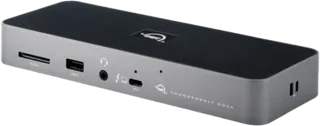
Thunderbolt 5 dock with 140W charging, downstream Thunderbolt 5 ports for monitors and drives, 2.5 Gigabit Ethernet and SD plus microSD readers. No HDMI or DisplayPort ports, so monitors connect over Thunderbolt.
-
OWC Thunderbolt Dock (11-port) · OWC
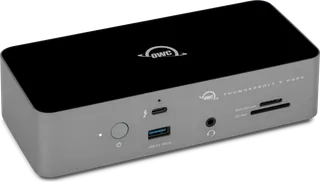
Thunderbolt 4 dock with three downstream Thunderbolt 4 ports, 96W charging, an SD reader and Gigabit Ethernet. No HDMI or DisplayPort ports and no USB-C data ports beyond Thunderbolt.
-
Belkin Connect Pro Thunderbolt 4 Dock · Belkin
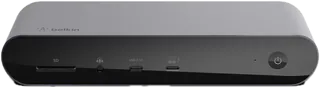
Thunderbolt 4 dock with two HDMI 2.0 ports, so HDMI monitors need no adapter, plus SD reader and Gigabit Ethernet. Charges laptops at up to 90W. Two of its four USB-A ports are slow USB 2.0.
-
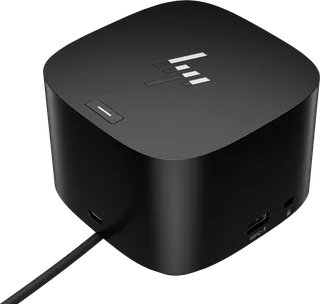
HP Thunderbolt Dock G4 (120W) · HP · Superseded
Business Thunderbolt 4 dock (120W version) with two DisplayPort, one HDMI and one downstream Thunderbolt 4 port, plus 2.5 Gigabit Ethernet. Charges laptops at up to 100W. HP's US store now sells its G6 Thunderbolt 4 docks instead; no SD reader or audio jack, and a one-year warranty.
Suggest a change
Related comparisons
-
 Laptop stands
Compare fixed, adjustable, and folding laptop stands by how high they lift the screen, how they adjust, what they weigh and fold down to, what size laptop they hold, and the warranty. The trade-off is between solid desk stands that stay put and light folding stands you can carry, and between a fixed height and one you can tune.
-
 KVM switches
Compare desktop KVM switches for sharing one desk between two computers, such as a work laptop and a personal PC. The real choices are how many monitors you need, which video connections your computers have (HDMI, DisplayPort or USB-C), refresh rate, EDID emulation so windows stay put, USB speed, and whether the switch can charge a laptop.
-
 Uninterruptible power supplies
Compare desktop and tower uninterruptible power supplies (UPS) from CyberPower, APC and Eaton for a home office, home network or small business. A UPS keeps your computer, monitor, router and modem running through short outages and gives you time to save work and shut down. The real trade-offs are output power, pure sine wave versus simulated output, runtime at your actual load, and how easily you can replace the battery when it wears out.
-
 Ergonomic keyboards
 change the angle of your hands and wrists to reduce strain from long typing sessions. They range from gently curved one-piece boards that feel familiar on day one to fully split, tented, programmable keyboards that take weeks to learn. This grid compares layout, split and tenting adjustment, key switches, compatibility, and the learning curve, so you can match the amount of change to your needs and budget.
-
 Computer monitors
Compare computer monitors sold in the US, from budget office screens to 4K and 5K displays for creative work, ultrawides, and fast OLED and IPS gaming monitors. The main choices are size and resolution, panel type, refresh rate for gaming, and whether one USB-C cable can charge and connect your laptop.
-
 Laptops
Compare laptops sold in the US, from Chromebooks and everyday Windows laptops to MacBooks, 2-in-1 convertibles, and gaming and creator machines. The main choices are operating system, how much memory and storage you need, screen size against weight, battery life, and whether you need serious graphics power.